Creating an Automated Notification and Approval System for Cross-functional, Collaborative Efficiency Using Microsoft Power Automate
Introduction
Creating an automated notification system with Microsoft Power Automate streamlines how teams receive timely updates, reduces manual follow-up, and ensures critical information reaches the right people at the right time. In this post, I’ll walk through the core concepts, key components, and a practical step-by-step example that demonstrates how to trigger notifications from data changes.
Defining The Problem
An Engineering Change Order (ECO) is a formal approved document or process that authorizes modifications to a product’s design, bill of materials (BOM), or manufacturing processes. It is used to correct errors, improve quality, or update components after a product has been released.
My current company manufactures and sells instruments that synthesize DNA. When we receive an ECO, it is important that all departments are aware of this document and process, as changes typically effects everyone from Software, Admin, Sales, Manufacturing, and Marketing.
The process for handling ECO’s before an automated system was created required an ECO owner to manually create a Microsoft Team’s post with a link to the ECO list item on SharePoint, then tagging stakeholders to notify them. Then, for each change, the owner would repeatedly tag the team with updates and requests for approvals.
When studying the existing workflow, I noticed repeated, manual actions from the team at every stage of the process. Some ECO’s were missing responses from tagged Teammates, other ECO’s abandoned with no clear indication of current status, while others were fully engaged and completed. It was apparent that a lot of effort and manual follow-up to keep the process flowing. When this effort was compounded by the multiple ECO’s occurring at the same time, there was no time left for the ECO owner to do real implementation. This manual process required not just upkeep from the owner, but hopes that all teams involved were in sync. The process was not scalable and issues would arise as teams would lose track of ECO’s or miss tags, creating a backlog of incomplete ECO’s over the years.
Solution Ideation
Automation seemed like the right choice to tackle some of these issues by getting rid of repeated manual, human error prone steps, allowing our team to focus on implementation. Our team primarily uses Microsoft Office products including SharePoint, Teams, and Outlook. Microsoft Power Automate was the clear choice for this task, as it allows easy integration of low-code solutions that connect to all of the Microsoft Office products listed.
Solution Implementation
Understanding the Process and Requirements
The first step I take in any project is to gather requirements, study the current workflow, and confirm with stakeholders that my understanding of both the process and requirements are correct. This saves a lot of effort and time in the implementation step, as any misunderstandings are corrected beforehand.
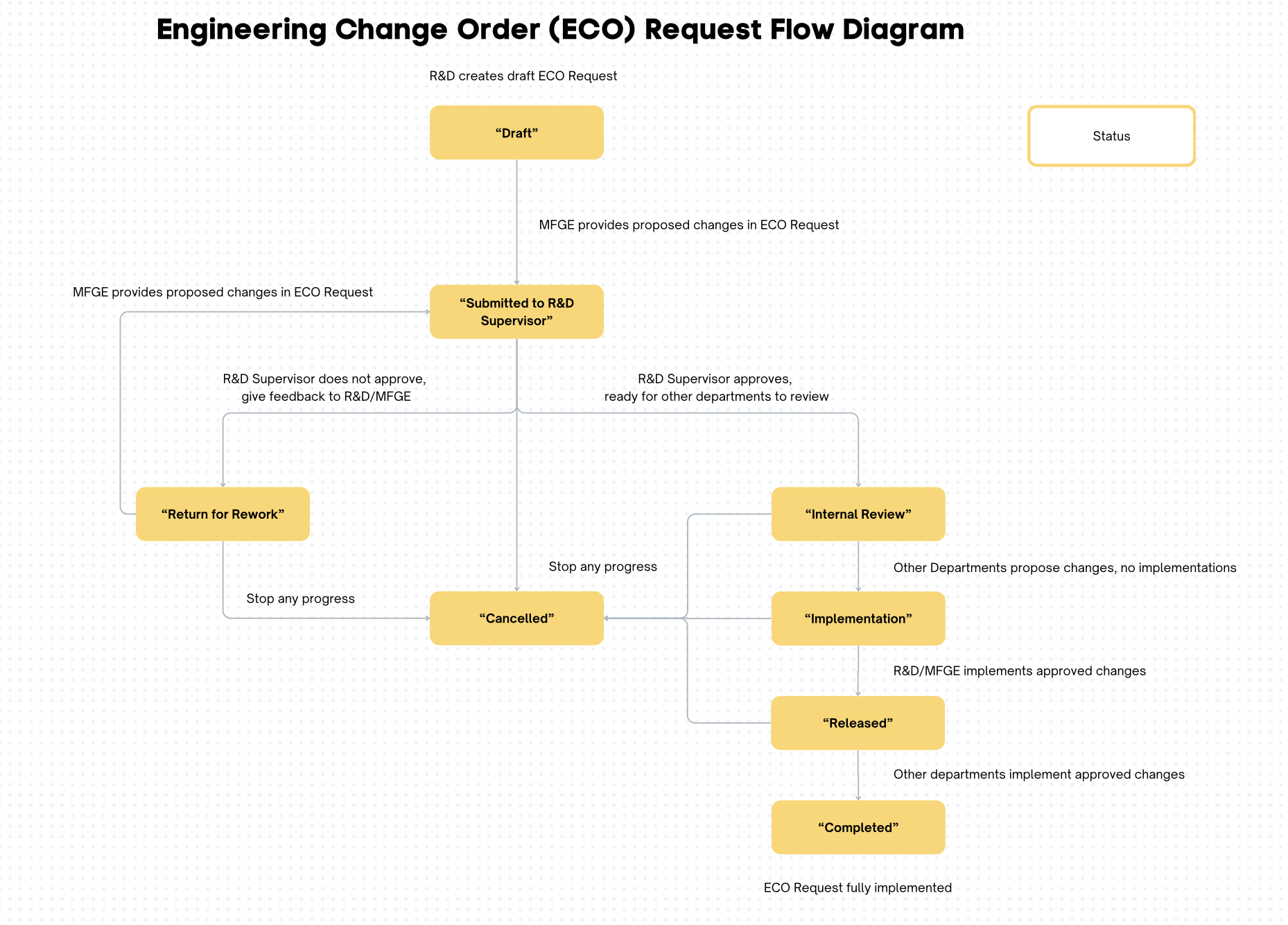
I began by creating a diagram of my understanding of the ECO workflow using Canva. Multi-step processes can get messy, so a visual diagram makes understanding the process easier for myself, and stakeholders.
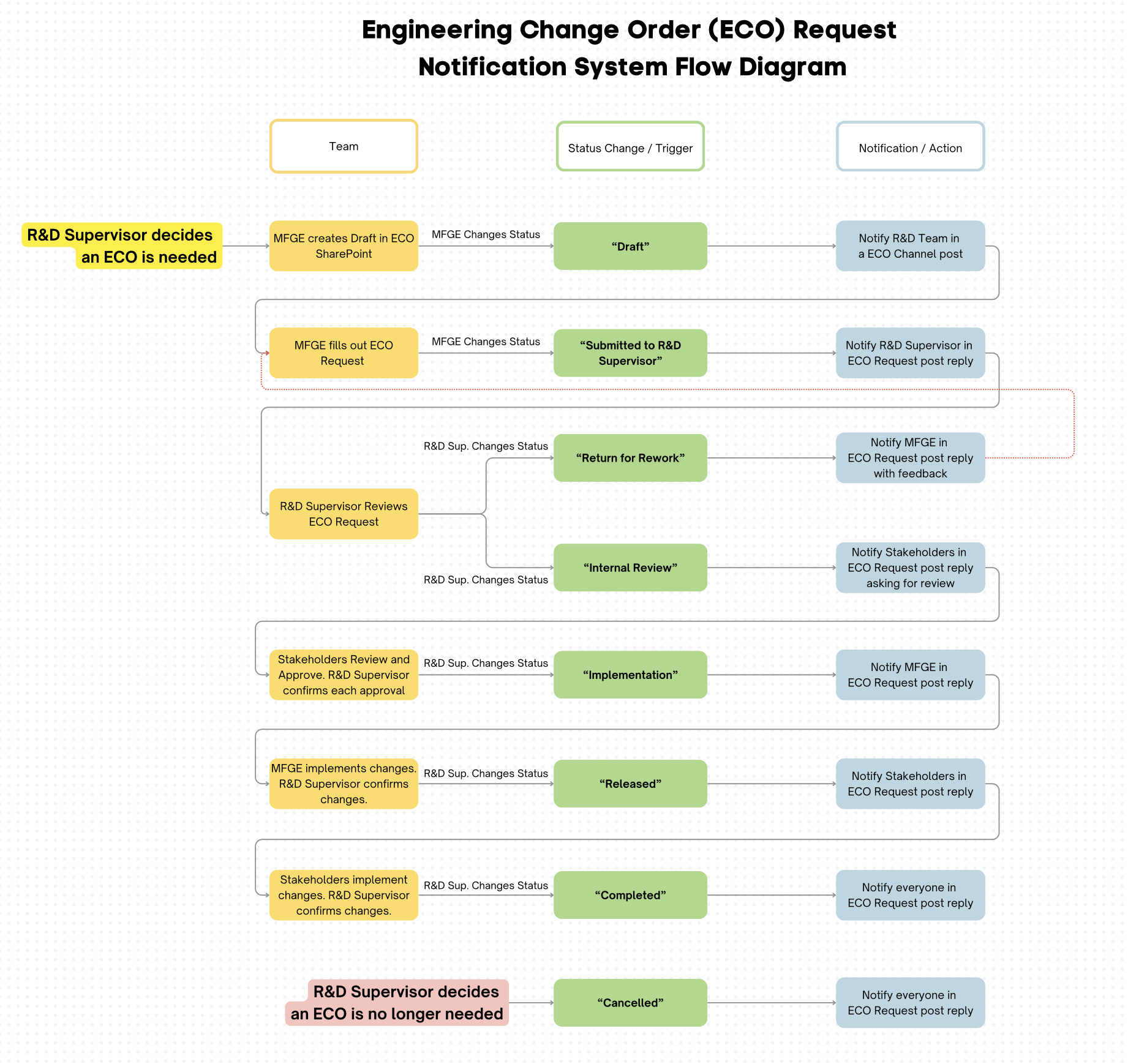
After reviewing my understanding of the process with stakeholders, I expand the process further, with a diagram of the proposed notification system. I list out the team involved, the status changes or triggers, and the resulting notification and action.
I can then use this diagram to get confirmation from stakeholders that this proposed system checks off all the requirements needed.
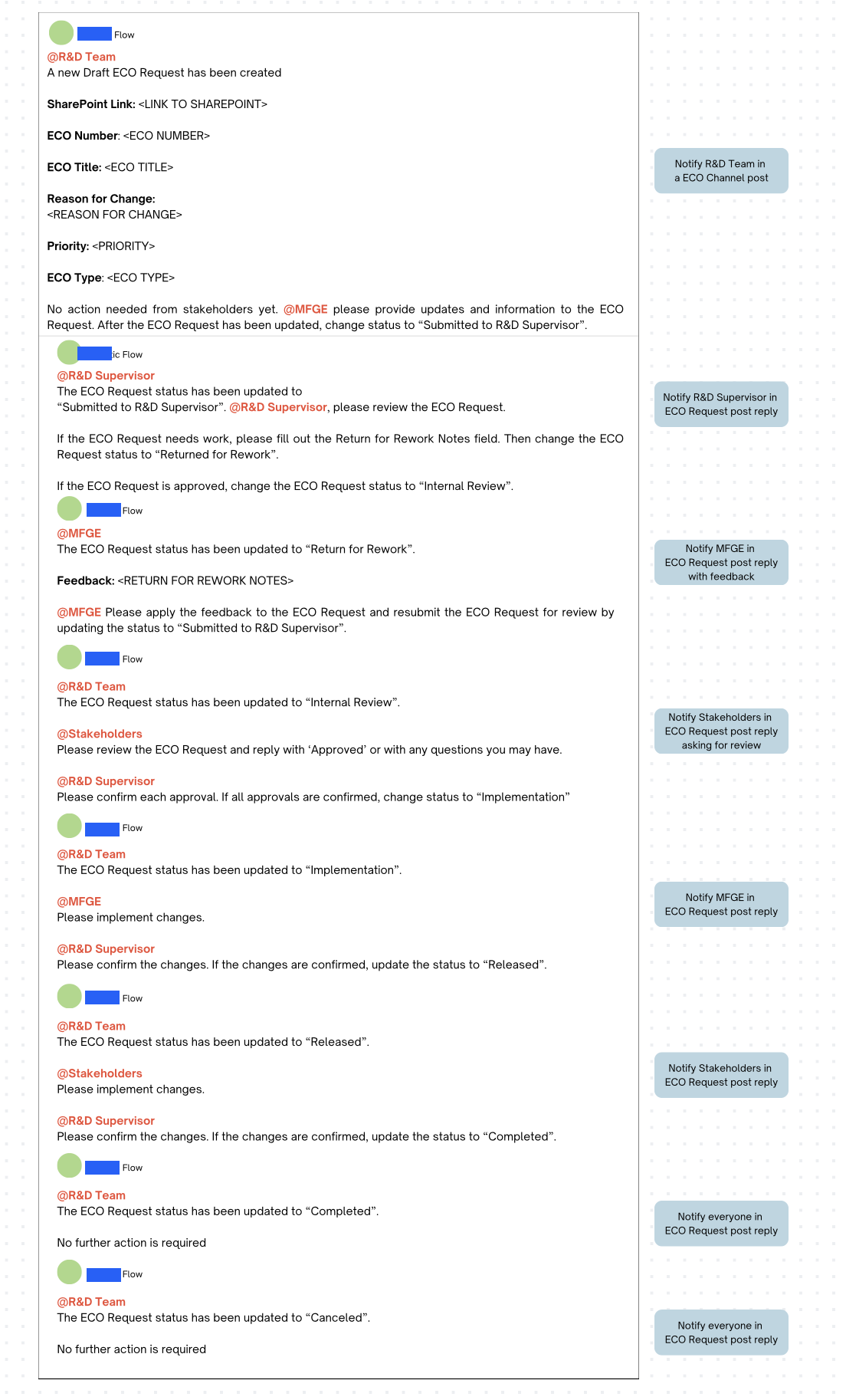
As a final step, after the actions are approved, I create a mockup of the notification text that will be displayed to the team after each trigger.
Implementation
Now that the requirements and my understanding of the process have been verified, I can begin implementing the system using Power Automate.
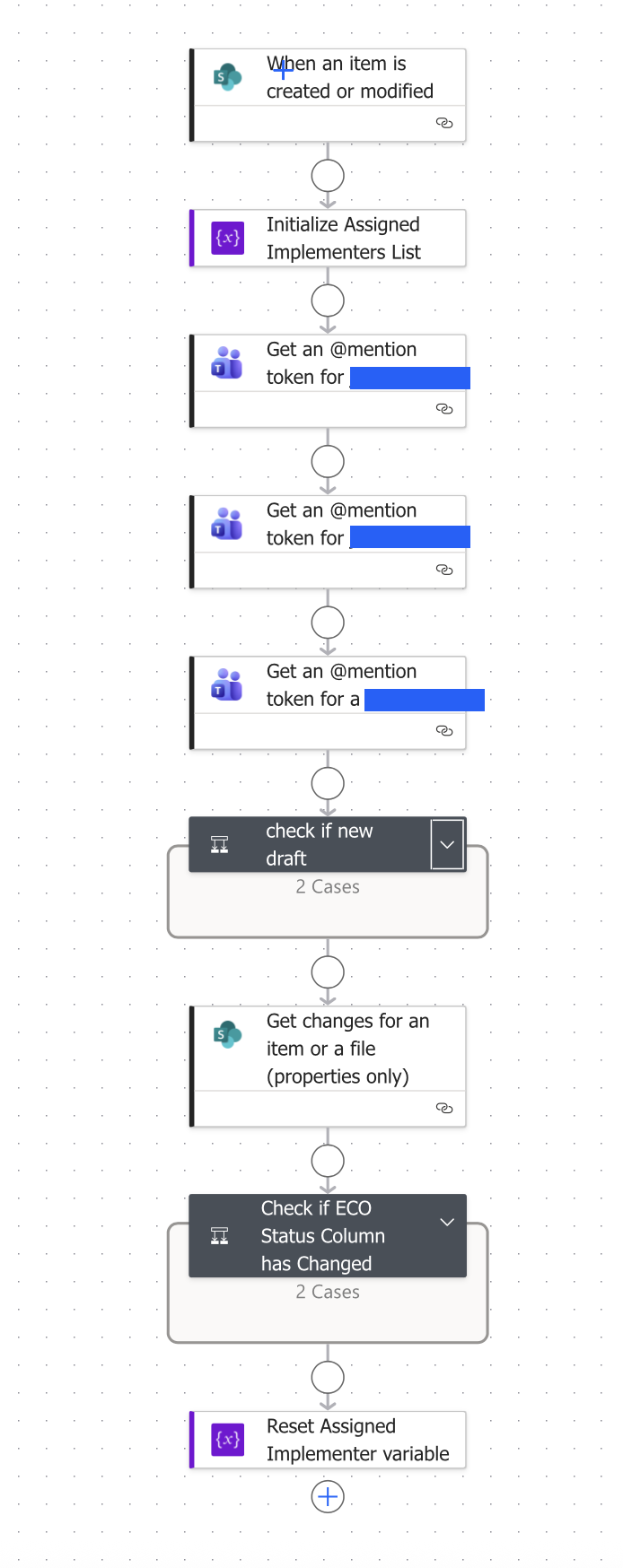
The first iteration of the automated system flow is simple. The image on the left is a collapsed view of the main actions in the system.
It begins with a trigger that listens to new SharePoint item creations, or updates on existing items for our Library of interest.
Next, we initialize a variable Array that will be dynamically appended to with objects of members of our team that are required for implementation.
We then create specific Microsoft Teams tags to be used to notify specific stakeholders.
The rest of the actions check for different statuses, and trigger subsequent actions depending on the status.
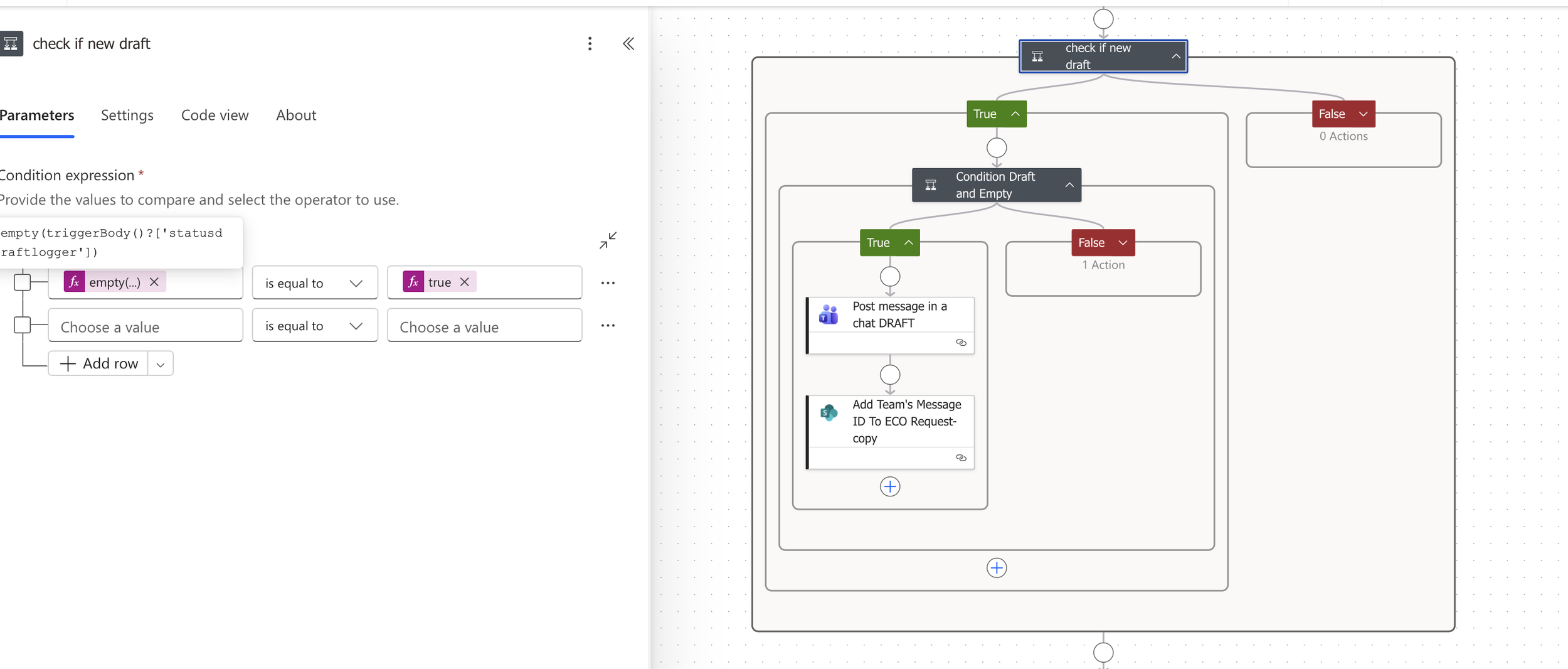
For new ECO requests, we want the system to create a post on Microsoft Teams, notifying the team that a new ECO was created. Since the system listens to both creation of new items, as well as updates to existing items in a SharePoint Library, extra logic and checks needed to be put into place to differentiate a new ECO and an existing ECO that was being modified.
We want the system to post once for new ECO’s, so there had to be a way to track whether a post had already been made for an ECO. I added a ‘tracker’ field for each list item that would be filled out when a post was created for it.
The system checks whether this tracker field is empty. If it is empty, it then checks if the status is set to ‘Draft’. If both are satisfied, a Microsoft Teams post is created, and the tracker field is populated.
If the system notices that the tracker field is already populated, it moves on to the next action, as a post has already been created for this item.
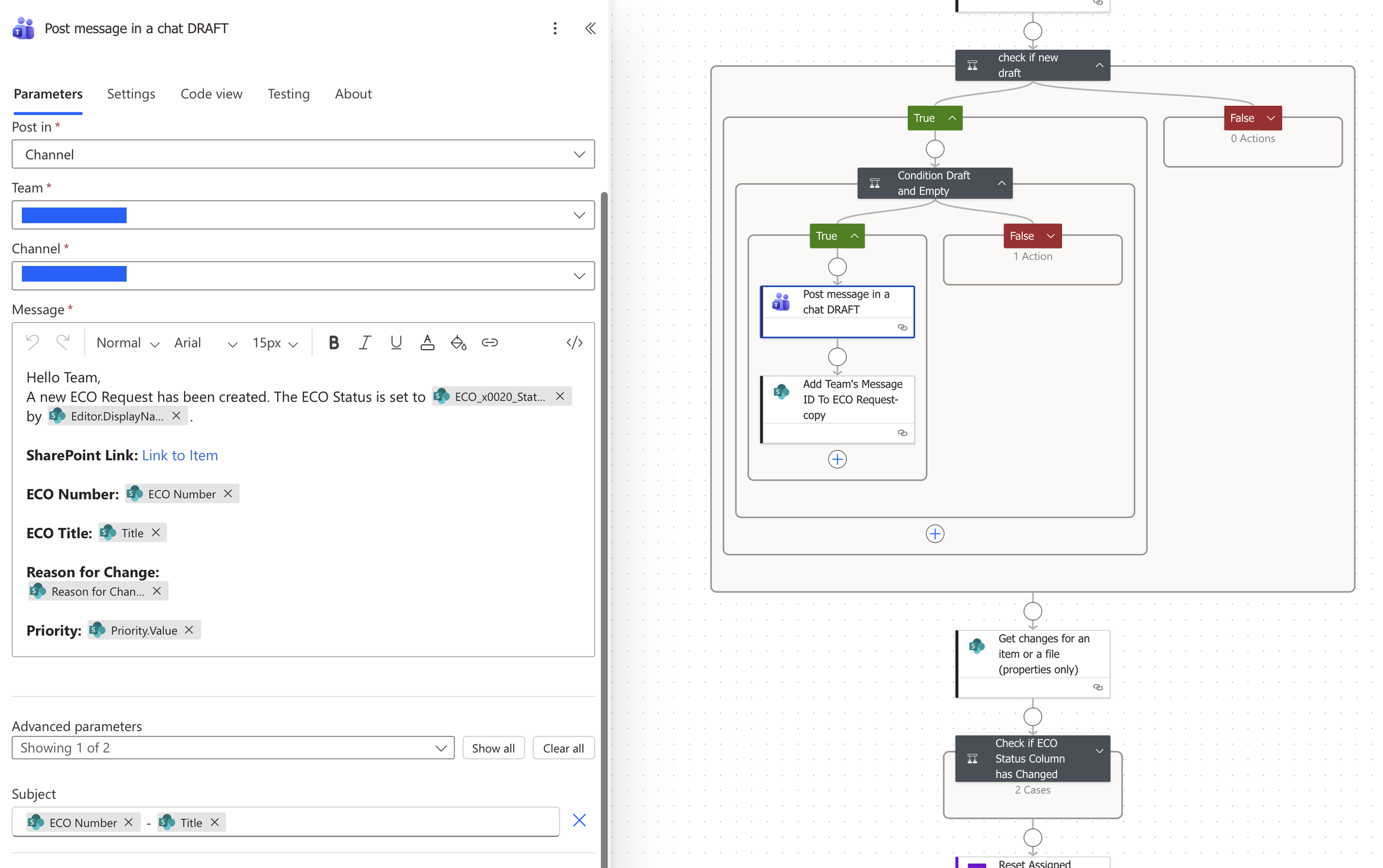
A look at creating a Microsoft Teams post using Power Automate, dynamically populating the message with data from the List item.
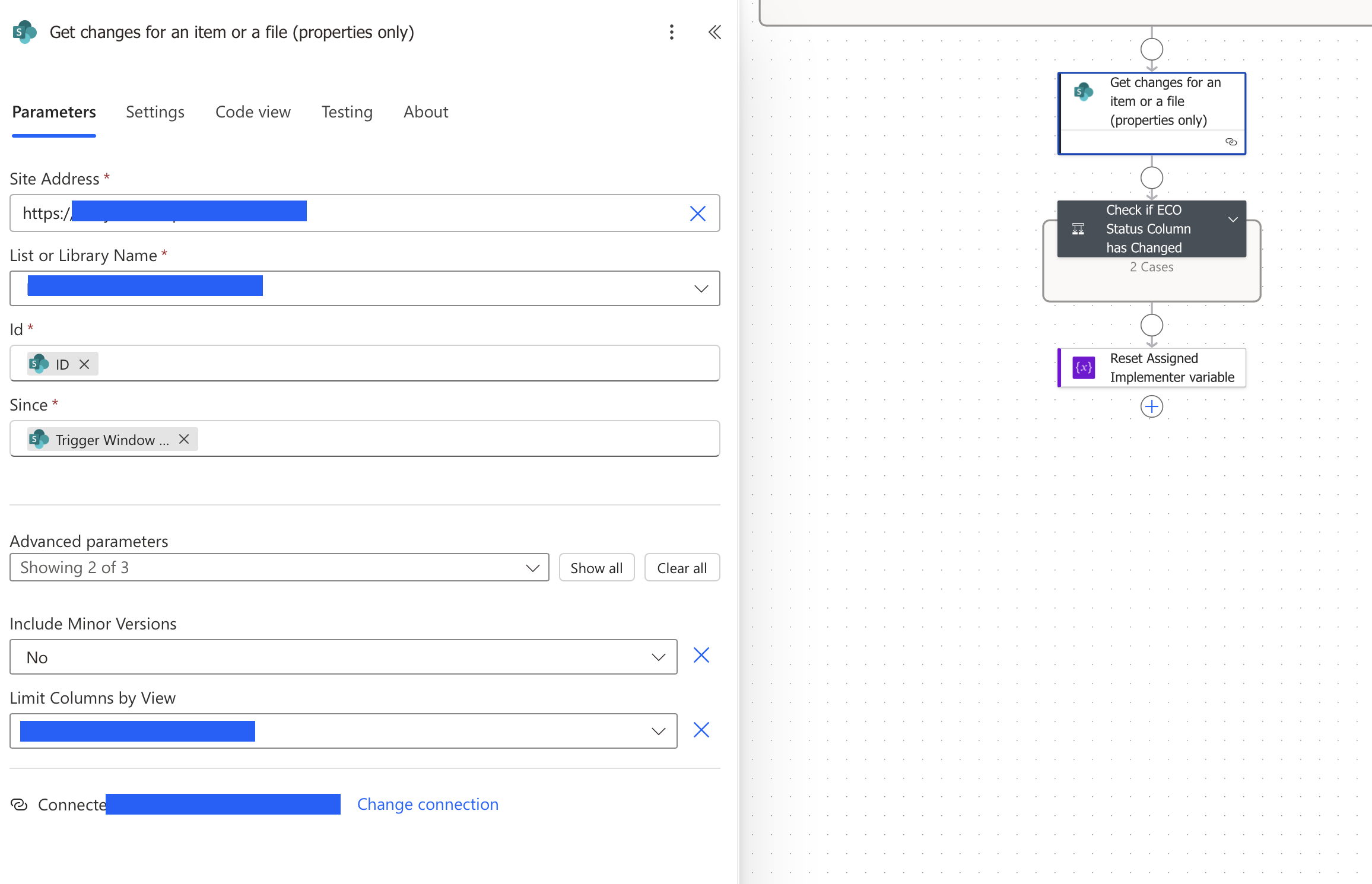
The next actions in the flow process existing ECOs that are being modified. This action gets changes for the item. It checks each field and returns a yes or a no, whether a change had occurred. This is used to detect changes in statuses in the next step.
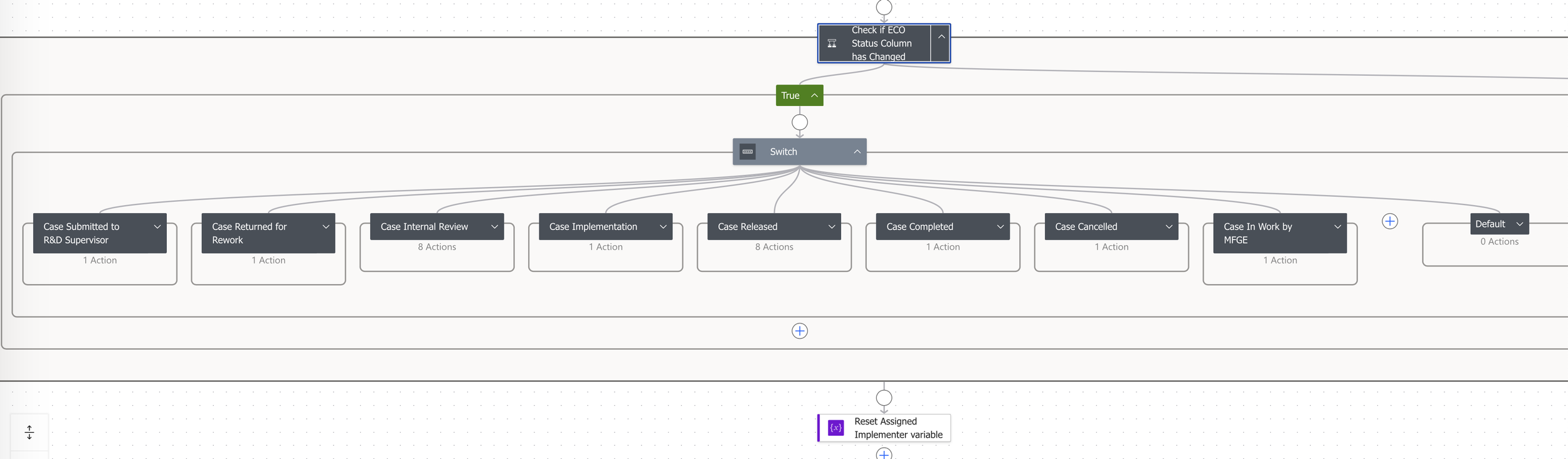
This step checks for changes in the status field. If there are changes to the status, a Switch/Case is used to process the appropriate status with their corresponding actions.
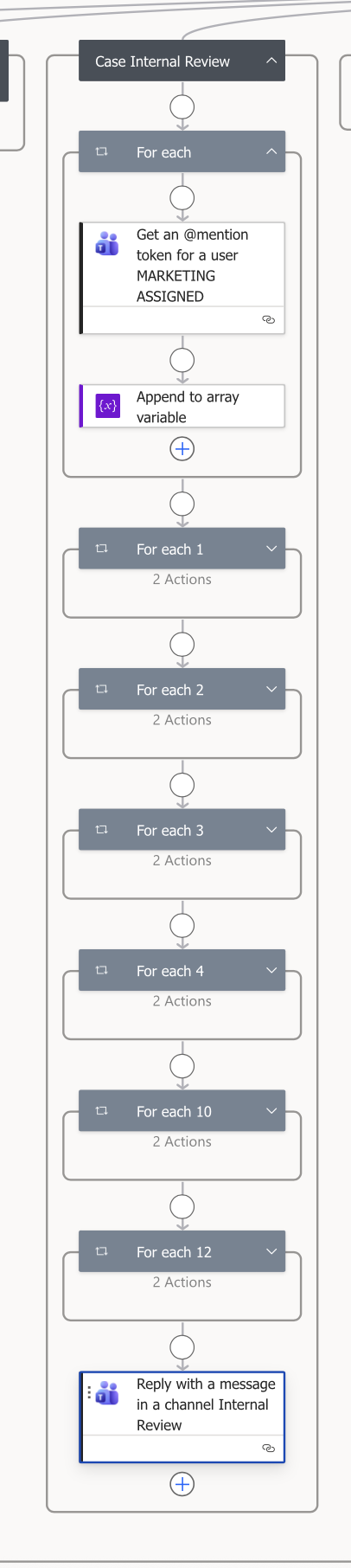
In an example case, when a status is updated to “Internal Review”, the system looks at assigned to fields in the ECO, and creates a Microsoft Teams mention tag to that user if the field is populated. It then appends that user to the array we created earlier. The array will be parsed out later to mention all the teammates required to take action.
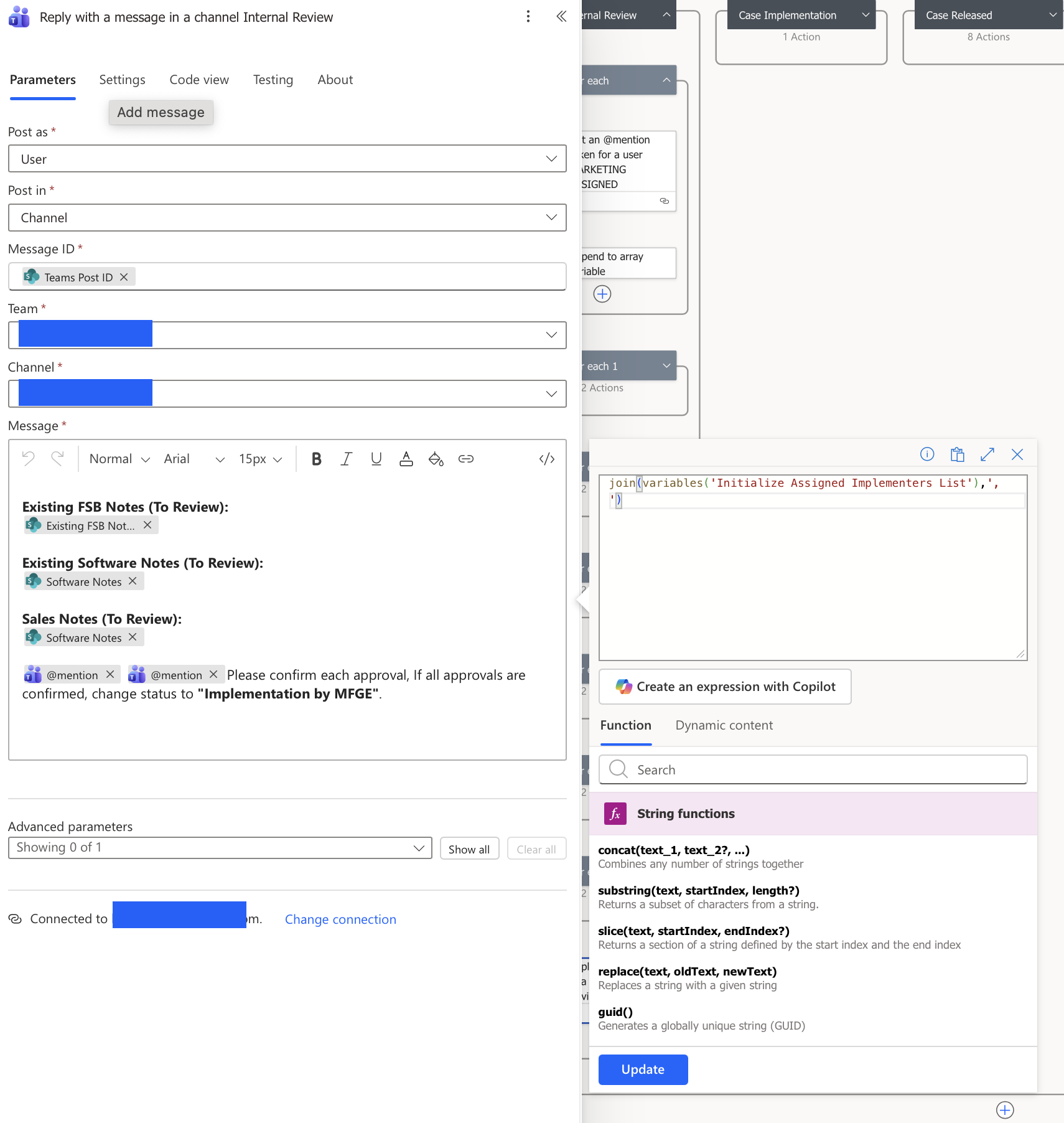
The system replies to the ECO’s Microsoft Teams post, tagging teammates that are required for action, and prompts follow up actions that are needed to progress the flow. It uses a join action with a , delimiter to parse out of team’s tags in the array we created.
Testing and Evaluation
The process outlined above is a completed version of the flow. On initial tests, I activated the flow, and monitored the team using the system to find bugs. The first bug found dealt with creating an initial post for new ECOs. Duplicate initial posts were created for new ECOs. The system did not account for ECOs that were in the Draft stage, that were being modified, so it created new Teams posts on each modification trigger. This was solved by adding the ‘tracker’ field to verify a post is only triggered once, when the field is empty.
Next Steps
There are a few features that can be added to this flow that can bring more efficient and improvements. Some ideas are adding formal approval steps that are automated, so implementers do not have to manually reply to say that they have done their part. This step will either use Microsoft Power Automates built in Approval actions, or creating our own checks using other actions.
Another edge case that may need to be addressed are older ECOs that were created and in progress before this system was activated. We need to verify that this system can account for items that do not begin in the draft stage.
Conclusion
The automation project successfully brought clarity and efficiency to the ECO workflow by standardizing steps and centralizing information, removed manual, error-prone upkeep through reliable automated checks, and maintained steady momentum in the ECO process by ensuring timely, consistent handoffs. Continued monitoring and incremental improvements will allow the system to adapt as requirements evolve.